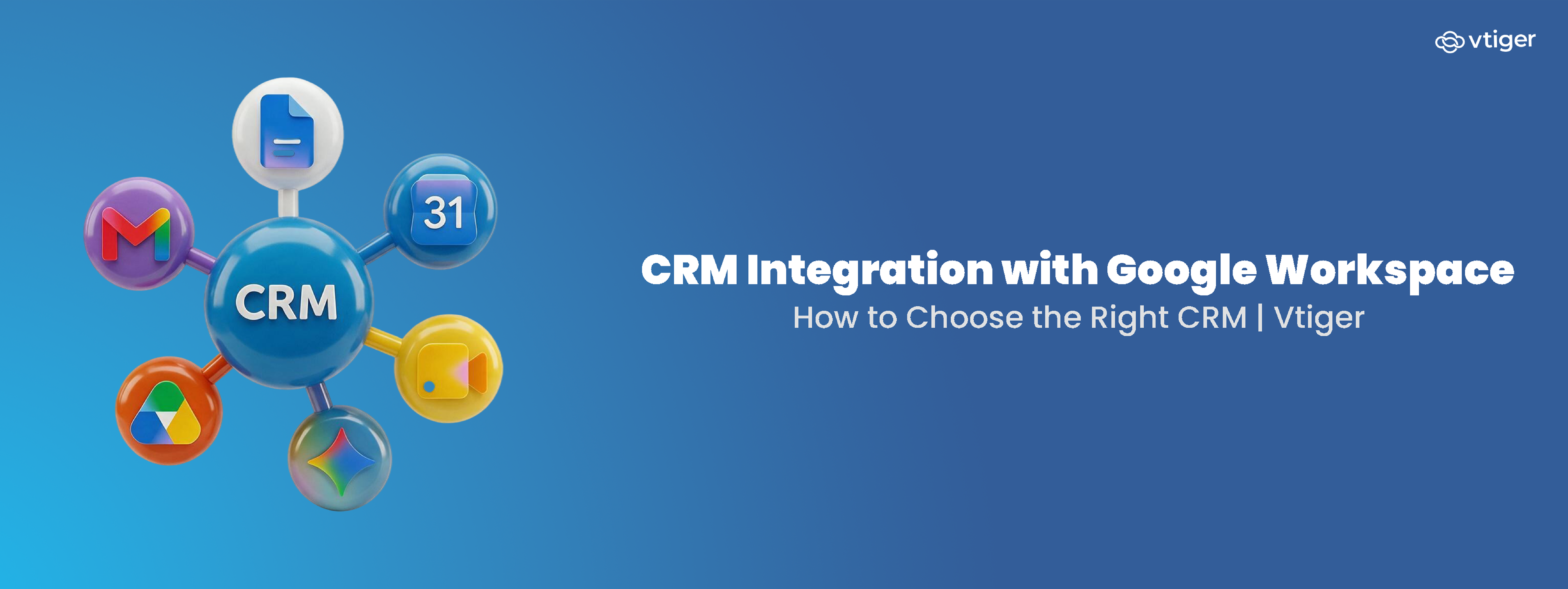
A CRM with Google Workspace integration connects Gmail, Calendar, Drive, Contacts, and Meet with your customer relationship management platform. Sales and support teams can then manage interactions, schedule meetings, share files, and collaborate without switching between applications, improving productivity and customer engagement.
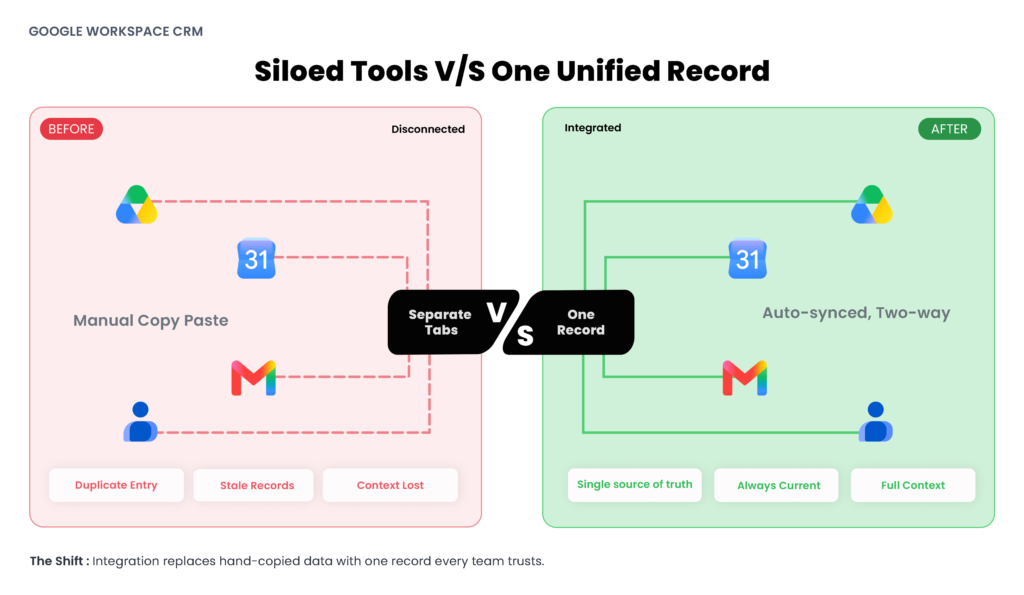
A typical sales team spends its day inside Gmail, Google Calendar, and Google Drive. When the CRM sits in a separate tab, every email, meeting, and shared document has to be copied across by hand, and most of it never is. That gap is where deals go quiet, and records go stale.
A CRM that integrates with Google Workspace fixes this disconnect, turning your everyday Google tools into a central hub for customer data. The harder question is which integration to choose, because they vary widely in depth, sync direction, and control.
What Is CRM Integration
CRM integration connects your customer relationship management platform to the other software your business runs on, so data flows between them automatically, with no manual re-entry. Google Workspace integration is the specific case that links your CRM to Gmail, Calendar, Drive, Contacts, and Meet.
The result is a completely synchronized system. Contact details, email threads, and calendar events stay consistent across tools, while customer information is consolidated into a central record accessible to every team. Routine workflows execute automatically, ensuring all colleagues operate from the exact same real-time data.
This has become standard practice: IBM reports that 61% of software decision-makers are implementing or expanding customer-service software, so a connected CRM is now the baseline of what a CRM system is expected to do.
Why Integrate Your CRM with Google Workspace
Integrating your CRM with Google Workspace eliminates manual data entry, which remains the primary cause of incomplete customer records. The true impact is best understood by looking at how this connection transforms your daily sales and support operations.
| “Data is a precious thing and will last longer than the systems themselves.” Tim Berners-Lee, inventor of the World Wide Web |
Reduce Manual Data Entry
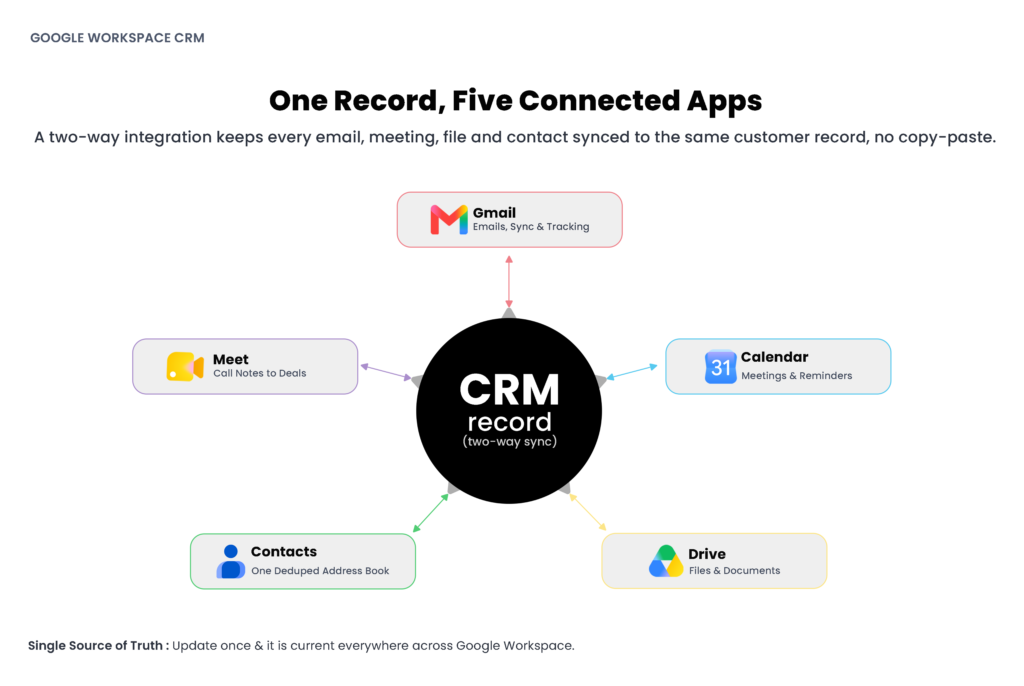
Gmail automatically logs communications against the correct contact, and Google Contacts maintains a single, deduplicated address book. This prevents representatives from manually transferring details between applications. Resolving this fragmentation is critical, as Forrester, research cited by IBM indicates that 58% of decision-makers struggle to interpret customer data because it originates from too many disparate sources.
Improve Team Collaboration
Google Drive associates proposals and contracts with the customer record, while Google Meet connects meeting notes to the appropriate deal. Sales, marketing, and support share an up-to-date view of each account through one cloud CRM, with end-to-end context ready at their fingertips.
Google Drive attaches proposals and contracts to the customer record, and Google Meet ties call notes to the deal they belong to. Sales, marketing, and support then share one current view of each account through a single cloud CRM platform, with the full context already assembled in one place.
Save Time on Routine Work
Google Calendar seamlessly synchronizes meetings and reminders in both directions, while automated workflow rules handle administrative tasks that previously consumed valuable hours. The resulting time savings are significant: Gartner reports that the average desk worker now uses 11 applications to complete their daily tasks—nearly double the number in 2019—and every transition between them creates operational friction.
Keep Customer Records Accurate
Two-way synchronization automatically mirrors updates across Gmail, Google Calendar, and your CRM, preserving data integrity without manual effort. Vtiger One, for example, brings these connections together in One View, a single profile that shows Gmail threads, Calendar events, and Drive files on one customer record, which is the practical shape of a CRM for Google workflows.
Key Features to Look for in a CRM with Google Workspace Integration
The phrase “Google Workspace integration” covers everything from a one-way contact sync to a full two-way connection across the suite. These six capabilities separate a real integration from a marketing checkbox.
Gmail Integration
A Gmail integration add-on is the core of any Google Workspace CRM. Look for two-way email sync that logs messages against the right contact, open and click tracking through embedded pixels, one-click contact and deal creation from the inbox sidebar, and full conversation history on the record. Without it, reps still work blind.
Google Calendar Sync
Meetings booked in the CRM should appear in Google Calendar, and vice versa, with no double entry. Strong sync handles two-way event updates, triggers task reminders, and respects details like buffer times and availability, so a rescheduled call never leaves a stale record behind.
Google Drive Integration
Proposals, contracts, and quotes stored in Drive. The integration should attach the latest version to the relevant deal or contact and respect Drive sharing permissions, so the whole team opens the active file straight from the customer record, with no folder or inbox hunt.
Contact Synchronization
Two-way contact sync keeps Google Contacts and the CRM identical, maps fields correctly in both directions, and blocks duplicates through matching rules on email or phone. The payoff is one centralized address book, complete with Google Contacts labels, kept identical everywhere it appears.
Workflow Automation
A strong integration goes beyond syncing data to trigger actions: a follow-up email when a deal stage changes, a task after a meeting, an approval routed when a discount exceeds a threshold. Mature platforms expose this through visual business process automation, so teams build trigger-and-action rules and webhooks without writing code.
Security and Access Controls
Connecting customer data to five Google apps widens the surface you have to protect. Verify token-based OAuth 2.0 authentication, SAML single sign-on, role-based access control that limits who sees which records, and certifications like ISO 27001, alongside GDPR or regional data-residency rules that apply to your business.
How to Choose the Right CRM Integration
Features reveal what an integration can do; these six criteria determine whether it fits your team. A structured CRM tools guide ranks them against your own workflow, weighting the capabilities your team will actually use. Work through them in order.
Assess Your Business Requirements
Evaluate your team size, revenue targets, and daily workflows from the outset. A three-person startup handling basic email needs far less than an enterprise desk managing SLA-bound cases. Defining your scope early prevents paying for unused licenses and redundant modules.
Evaluate Integration Capabilities
Prioritize native, real-time two-way synchronization with predictable handling for conflicting edits. Relying on third-party connectors or delayed batch processing actively compromises pipeline visibility, reopening the data gaps you set out to close.
Consider Ease of Use
Pick an integration with a clean interface that reps can master in a few days. Daily tasks—like scheduling calls or saving emails—should take a single click. If it feels too complicated, your team will quickly ignore it.
Check Automation Features
Look past data sync to what the platform automates: workflow rules, task creation, lead routing, and email sequences triggered by CRM events. CRM automation is where an integration turns from a basic record into hours saved every week, so test the builder on a real workflow before you commit.
Review Reporting and Analytics
Unified data is only useful when you can read it. Check for productivity reports, pipeline dashboards, and customer insights, and whether measures like Net Promoter Score track against the same records your team maintains. Some platforms layer predictive deal scoring and forecasting on top, surfacing next-best actions for reps to act on.
Plan for Future Growth
Match the platform to where the business is heading over the next few years, so this year’s choice still fits after growth. Confirm it scales with added users, connects to the rest of your stack, and allows customization. Teams that prioritize control sometimes weigh an open source CRM edition they can self-host and extend, accepting that native Google Workspace integration is usually deepest in cloud editions.
Benefits of CRM Integration with Google Workspace
The combined effect of a well-chosen integration shows up across the whole revenue team as measurable business productivity and streamlined revenue operations:
- Eliminates duplicate data entry, so records stop drifting out of date.
- Improves team collaboration through one shared customer view across sales, marketing, and support.
- Keeps customer information current without manual upkeep.
- Saves time by automating routine logging, reminders, and follow-ups.
- Increases sales productivity by keeping reps in a single workspace.
- Enhances customer communication with full context on every interaction.
- Centralizes business information into a single source of truth.
- Supports scalability as the team and its data grow.
Best Practices for CRM Integration
An integration earns its cost only when the team uses it every day. A structured CRM implementation that plans for data quality, clear ownership, and adoption tracking is what turns a connected toolset into a daily routine within weeks:
- Define measurable integration objectives before implementation begins.
- Clean existing customer data first, so sync propagates accurate records across every connected app.
- Automate the highest-volume repetitive workflows first, where time savings are largest.
- Train employees on the full integrated workflow, including how data moves between Gmail, Calendar, and the CRM.
- Monitor synchronization on a schedule to catch silent field-mapping failures early.
- Review permissions and security settings at set intervals as roles change.
- Measure productivity improvements against a baseline you capture before go-live.
Frequently Asked Questions
What is CRM integration?
CRM integration connects your CRM to the other tools your business uses, such as email, calendar, and file storage, so information moves between them automatically. It removes manual data entry, keeps records consistent across systems, and gives every team one accurate view of each customer.
Can a CRM integrate with Google Workspace?
Yes. Most modern CRMs offer a Google Workspace integration through native connectors or the Google Workspace Marketplace. Vtiger One, for example, connects with Gmail, Calendar, Drive, and Contacts so email, meetings, and files sync directly to customer records without switching between applications.
What Google Workspace apps can integrate with a CRM?
The core apps are Gmail for email logging and tracking, Google Calendar for meeting and reminder sync, Google Drive for document sharing, Google Contacts for a unified address book, and Google Meet for tying call activity to deals. Together they cover most day-to-day sales and support work.
What are the benefits of CRM integration?
Integration eliminates duplicate data entry, keeps customer informationup-to-date, and centralizes it into a single source of truth. Teams save time through automation, collaborate from one shared view, and communicate with full context, which improves both productivity and the customer experience.
How do I choose the right CRM integration?
Assess your team size, goals, and current workflows first. Then evaluate integration depth (native and two-way), ease of use, automation, reporting, and scalability. The right choice depends more on how your team works than on any single feature list, so match the tool to your process.
Is Google Workspace CRM integration secure?
It can be, provided the CRM uses token-based OAuth 2.0 authentication, offers role-based user permissions, and gives you clear control over data access and privacy. Review these settings, along with any GDPR or regional compliance needs, before connecting customer data across apps.
Can CRM integration improve team productivity?
Yes. By removing app-switching and manual re-entry, integration returns hours each week and keeps records accurate on their own. Reps stay in one workspace, follow-ups trigger automatically, and managers get reliable data, which together lift both sales output and response times.